Marriage Biodata Format in Word: Templates and Editing Tips
Creating a professional marriage biodata format in Word can seem daunting, but with the right biodata format word templates and formatting techniques, you can create a document that stands out in the Indian matrimony market. This guide walks you through the entire process from template selection to final polish.
Why Use Microsoft Word for Biodata Creation?
Microsoft Word remains the most popular and accessible tool for creating biodata documents. Here's why it's ideal:
Advantages of Using Word
- Widely Available: Most computers have Word installed
- Professional Results: Advanced formatting capabilities
- Easy Sharing: Universal file format (.docx)
- Print Ready: Perfect for physical copies
- Customizable: Extensive formatting options
- Cost Effective: No additional software needed
Perfect for Indian Matrimony
- Traditional Formatting: Supports cultural design elements
- Multilingual Support: Handles Indian languages well
- Professional Appearance: Creates impressive documents
- Easy Updates: Simple to modify and revise
Essential Elements of a Marriage Biodata
Before diving into Word formatting, let's understand what your biodata should include:
Personal Information Section
- Full name and date of birth
- Place of birth and current residence
- Contact information
- Marital status
- Physical attributes (height, complexion)
Family Background
- Parents' names and occupations
- Siblings' information
- Family values and traditions
- Cultural and religious background
- Family business details (if applicable)
Educational Background
- Academic qualifications
- Institutions attended
- Years of completion
- Special achievements
- Certifications and courses
Professional Details
- Current occupation
- Company and designation
- Work experience
- Salary information
- Career goals
Personal Interests
- Hobbies and interests
- Sports and activities
- Cultural pursuits
- Travel preferences
- Lifestyle choices
Partner Expectations
- Desired qualities in a partner
- Age preferences
- Location preferences
- Cultural expectations
- Future plans
Free Word Templates for Marriage Biodata
We've created several professional templates specifically designed for Indian matrimony. Here are the top templates you can download and customize:
1. Classic Elegance Template
- Design: Traditional with cultural motifs
- Best For: Conservative families
- Features: Ornate borders, traditional fonts
- Download: Classic Elegance Template
2. Modern Minimalist Template
- Design: Clean, contemporary layout
- Best For: Tech-savvy professionals
- Features: Simple design, focus on content
- Download: Modern Minimalist Template
3. Floral Delight Template
- Design: Beautiful floral accents
- Best For: Traditional yet modern families
- Features: Soft colors, elegant typography
- Download: Floral Delight Template
4. Professional Business Template
Step-by-Step Word Tutorial for Biodata Creation
Step 1: Setting Up Your Document
-
Open Microsoft Word
- Launch Word and create a new document
- Set page size to A4 (standard for biodata)
- Set margins: Top/Bottom: 1 inch, Left/Right: 0.75 inch
-
Choose Your Template
- Download one of our free templates
- Open the template in Word
- Save as a new document with your name
-
Set Up Page Layout
- Go to Layout → Page Setup
- Set orientation to Portrait
- Choose A4 paper size
- Set margins as specified above
Step 2: Creating the Header Section
-
Add Your Name
- Use a large, professional font (Arial, Calibri, or Times New Roman)
- Font size: 18-20pt for main name
- Center align the text
- Add a subtle underline or border
-
Add Contact Information
- Below your name, add contact details
- Font size: 11-12pt
- Include: Phone, Email, Address
- Use consistent formatting
-
Add Professional Photo
- Insert → Picture → From File
- Resize to 2x2 inches
- Position on the right side
- Use "Wrap Text → Square" for proper positioning
Step 3: Creating Content Sections
-
Personal Information Table
- Insert → Table → 2 columns, multiple rows
- Left column: Field names
- Right column: Your information
- Use consistent formatting throughout
-
Section Headers
- Use bold, 14pt font for section titles
- Add subtle borders or background colors
- Maintain consistent spacing
-
Content Formatting
- Use 11pt font for body text
- Maintain consistent line spacing (1.15)
- Use bullet points for lists
- Keep paragraphs short and readable
Step 4: Advanced Formatting Techniques
-
Tables and Borders
- Select your table
- Go to Table Design → Borders
- Choose appropriate border styles
- Use subtle colors for borders
-
Shading and Colors
- Select section headers
- Use light background colors
- Ensure good contrast for readability
- Stick to professional color schemes
-
Fonts and Typography
- Use professional fonts (Arial, Calibri, Times New Roman)
- Maintain consistent font sizes
- Use bold for emphasis
- Avoid decorative fonts
Word Formatting Tips for Professional Results
Typography Best Practices
-
Font Selection
- Headings: Arial Bold or Calibri Bold
- Body Text: Arial or Calibri
- Avoid: Comic Sans, Papyrus, or decorative fonts
-
Font Sizes
- Main Title: 18-20pt
- Section Headers: 14-16pt
- Body Text: 11-12pt
- Contact Info: 10-11pt
-
Line Spacing
- Section Headers: 1.0
- Body Text: 1.15
- Lists: 1.0
- Paragraphs: 1.5
Layout and Spacing
-
Margins and Alignment
- Left Margin: 0.75 inch
- Right Margin: 0.75 inch
- Top/Bottom: 1 inch
- Text Alignment: Left-aligned for body text
-
Section Spacing
- Between Sections: 12pt
- Between Subsections: 6pt
- Before/After Headers: 6pt
- Consistent spacing throughout
-
Table Formatting
- Cell Padding: 6pt top/bottom, 12pt left/right
- Border Style: Single line, 0.5pt
- Border Color: Dark gray or black
- Alternate Row Colors: Light gray for readability
Professional Color Schemes
-
Conservative Colors
- Primary: Dark blue (#2F4F4F)
- Secondary: Navy blue (#191970)
- Accent: Gold (#DAA520)
- Background: White or light gray
-
Modern Colors
- Primary: Charcoal (#36454F)
- Secondary: Steel blue (#4682B4)
- Accent: Teal (#008080)
- Background: White
-
Traditional Colors
- Primary: Maroon (#800000)
- Secondary: Dark green (#006400)
- Accent: Gold (#FFD700)
- Background: Cream or light beige
Common Word Mistakes to Avoid
Formatting Errors
-
Inconsistent Spacing
- Problem: Different spacing between sections
- Solution: Use consistent paragraph spacing
- Tip: Use Word's "Styles" feature for consistency
-
Poor Font Choices
- Problem: Using decorative or unprofessional fonts
- Solution: Stick to standard professional fonts
- Tip: Arial and Calibri are always safe choices
-
Overcrowded Layout
- Problem: Too much information in small spaces
- Solution: Use adequate white space
- Tip: Leave 1-inch margins and proper spacing
Content Errors
-
Spelling and Grammar
- Problem: Typos and grammatical errors
- Solution: Use Word's spell check and grammar check
- Tip: Have someone else proofread your biodata
-
Inconsistent Information
- Problem: Different details in different sections
- Solution: Double-check all information
- Tip: Create a master list of your details first
-
Outdated Information
- Problem: Old contact details or achievements
- Solution: Update regularly
- Tip: Review and update every 3-6 months
Advanced Word Techniques
Using Styles for Consistency
-
Create Custom Styles
- Select formatted text
- Right-click → Styles → Save Selection as New Style
- Name your style (e.g., "Biodata Header")
- Apply consistently throughout
-
Modify Existing Styles
- Right-click on style → Modify
- Change font, size, spacing
- Update all instances automatically
-
Style Sets
- Use Word's built-in style sets
- Choose professional appearance
- Customize colors and fonts
Table Formatting
-
Professional Tables
- Use consistent border styles
- Alternate row colors for readability
- Proper cell padding
- Align text appropriately
-
Table Design Options
- Select table → Table Design
- Choose professional table styles
- Customize colors and borders
- Ensure good contrast
Page Layout Features
-
Headers and Footers
- Add page numbers if needed
- Include your name in header
- Professional footer information
-
Page Breaks
- Use page breaks for sections
- Keep related information together
- Avoid awkward page splits
Template Customization Guide
Modifying Our Free Templates
-
Download and Open
- Download your chosen template
- Open in Microsoft Word
- Save as a new document
-
Personalize Content
- Replace placeholder text with your information
- Update contact details
- Add your photo
- Modify sections as needed
-
Customize Design
- Change colors to match your preferences
- Adjust fonts if desired
- Modify spacing for your content
- Add or remove sections
Creating Your Own Template
-
Start from Scratch
- Create new Word document
- Set up page layout
- Design header section
- Create content sections
-
Save as Template
- File → Save As
- Choose "Word Template (*.dotx)"
- Save in Templates folder
- Reuse for future biodata
Printing and Sharing Tips
Print Preparation
-
Print Preview
- Always check print preview
- Ensure proper page breaks
- Check margins and spacing
- Verify photo quality
-
Paper Quality
- Use high-quality A4 paper
- Choose appropriate weight (80-100gsm)
- Consider color printing for photos
- Test print on regular paper first
-
Print Settings
- Set to "Best Quality"
- Choose appropriate paper size
- Enable "Print Background Colors and Images"
- Use color printing if needed
Digital Sharing
-
PDF Conversion
- File → Export → Create PDF
- Maintain formatting
- Smaller file size
- Universal compatibility
-
Email Sharing
- Compress images if needed
- Use descriptive subject lines
- Include brief introduction
- Follow up appropriately
-
Online Uploads
- Ensure file size limits
- Use appropriate file formats
- Include relevant tags
- Optimize for web viewing
Troubleshooting Common Word Issues
Formatting Problems
-
Text Not Aligning
- Check paragraph alignment settings
- Verify table cell alignment
- Remove extra spaces or tabs
- Use consistent formatting
-
Photos Not Positioning
- Use "Wrap Text" options
- Check image size and resolution
- Ensure proper page layout
- Use "In Line with Text" for simple layouts
-
Tables Not Formatting
- Select entire table before formatting
- Use Table Design options
- Check border and shading settings
- Ensure consistent cell sizes
File Issues
-
Large File Size
- Compress images
- Remove unnecessary formatting
- Save as .docx format
- Use PDF for sharing
-
Compatibility Issues
- Save in older Word format if needed
- Use PDF for universal access
- Check recipient's Word version
- Test on different computers
Professional Template Gallery
For inspiration and reference, here are professionally designed biodata templates you can emulate in Microsoft Word:
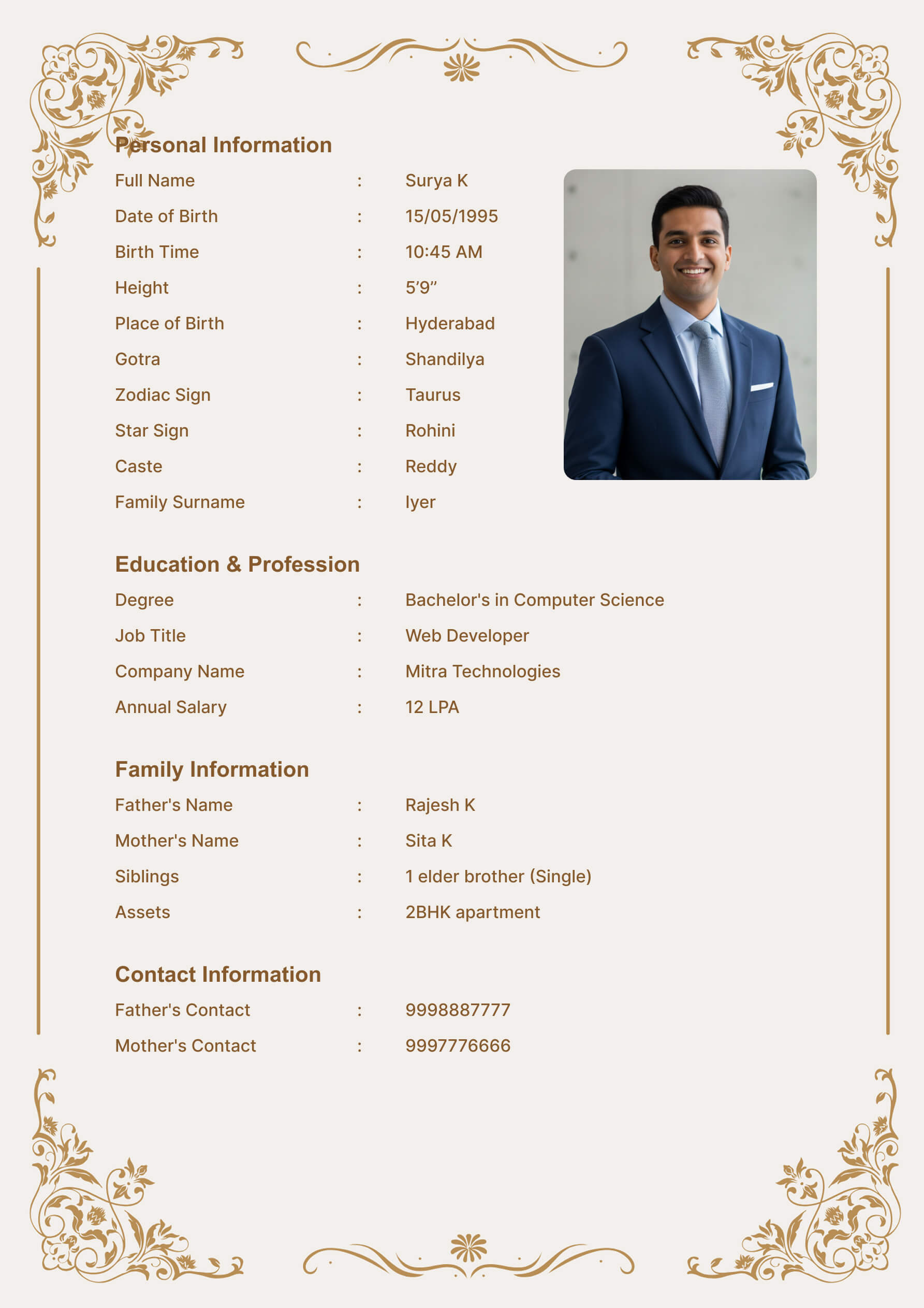 Classic design with sophisticated typography
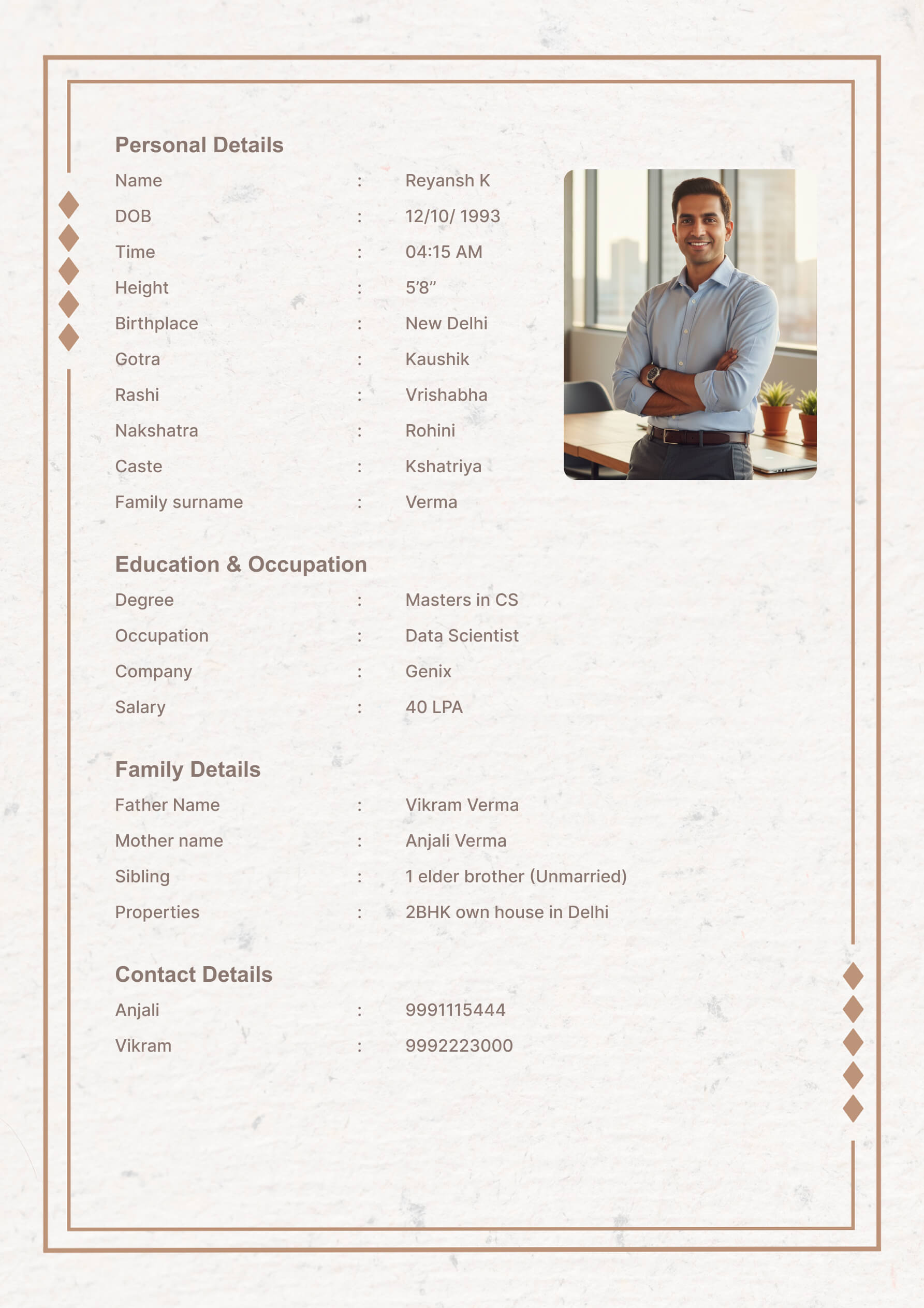 Clean, contemporary layout for today's couples
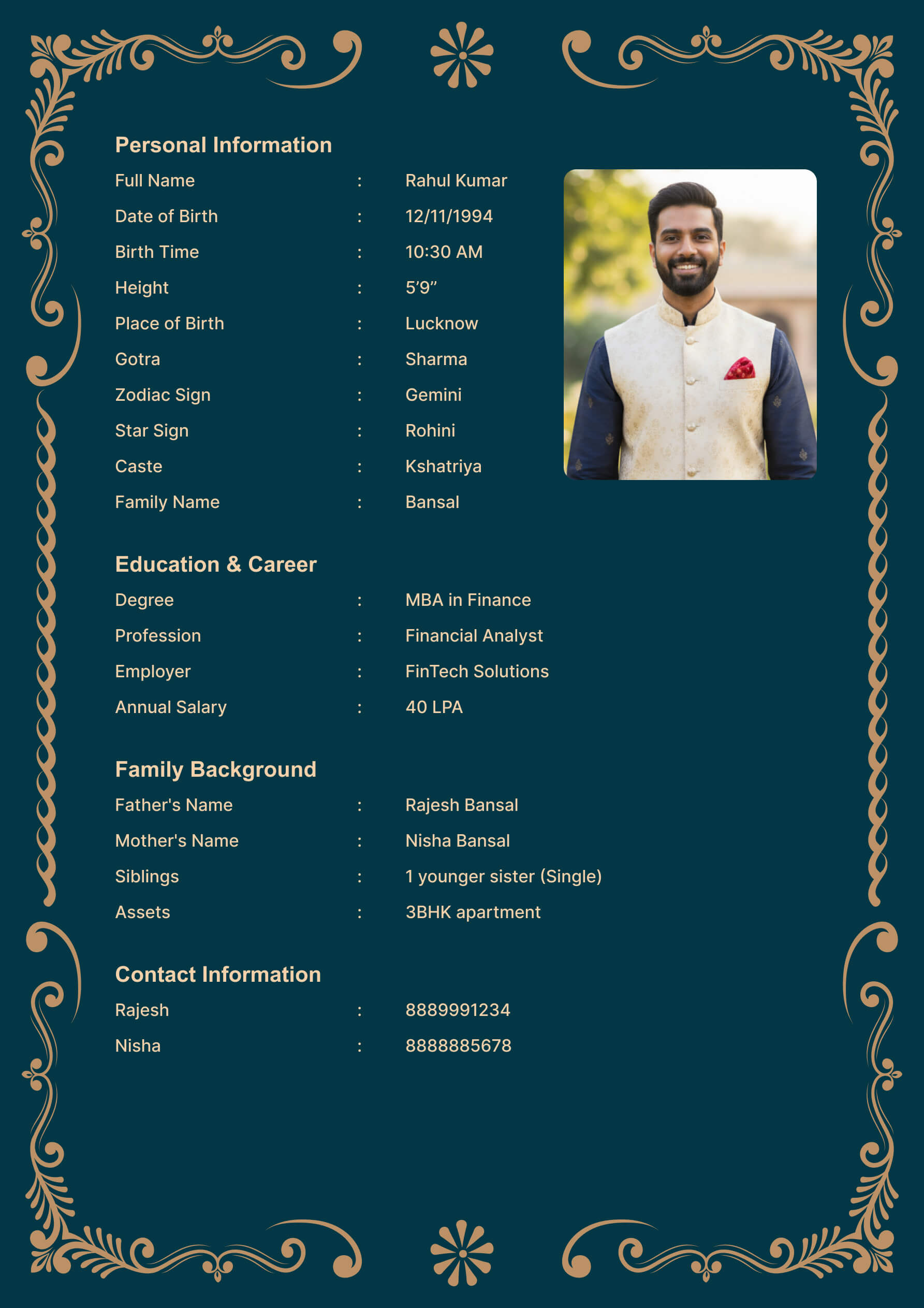 Beautiful floral accents for traditional appeal
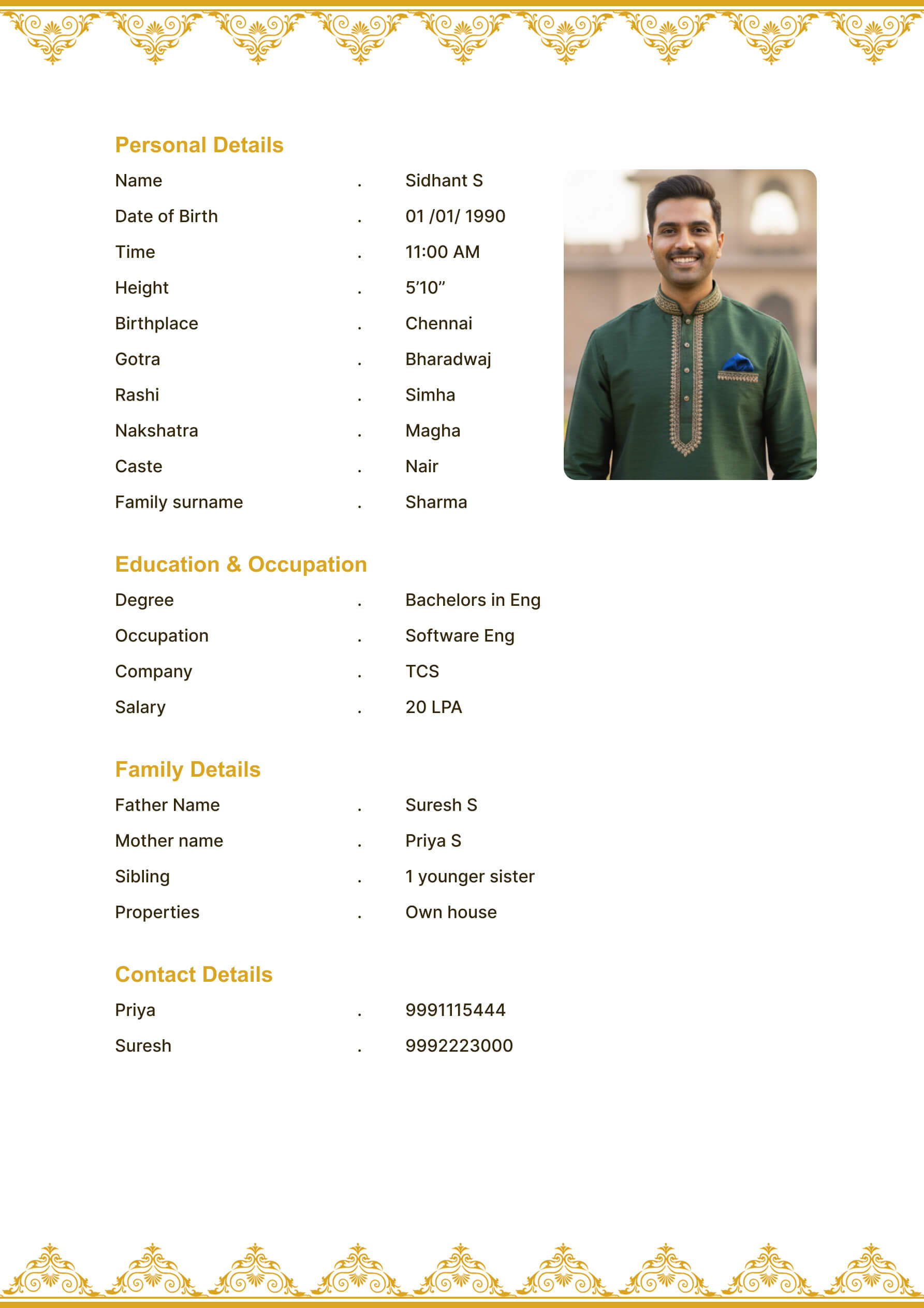 Premium design with gold accents
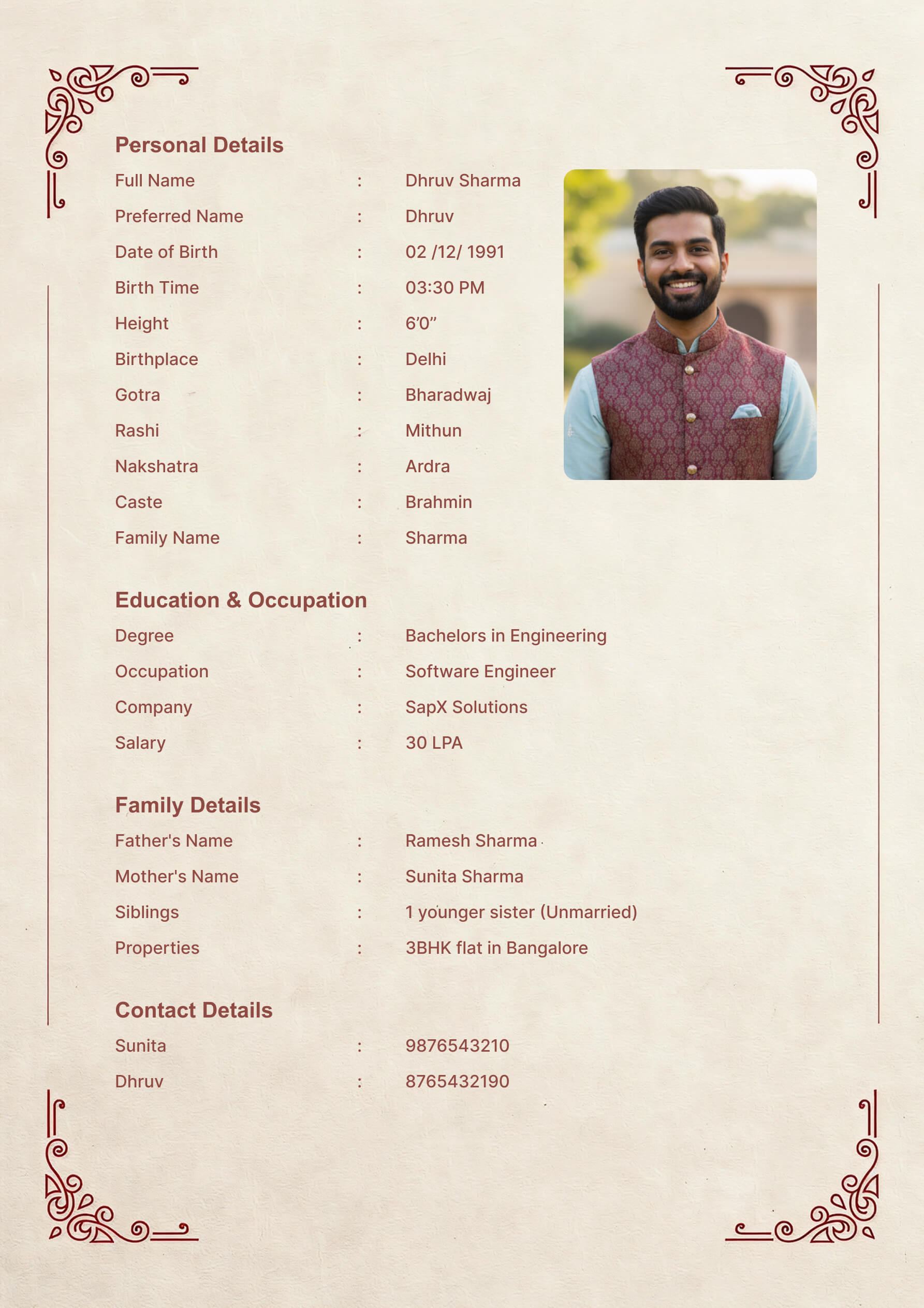 Timeless design that never goes out of style
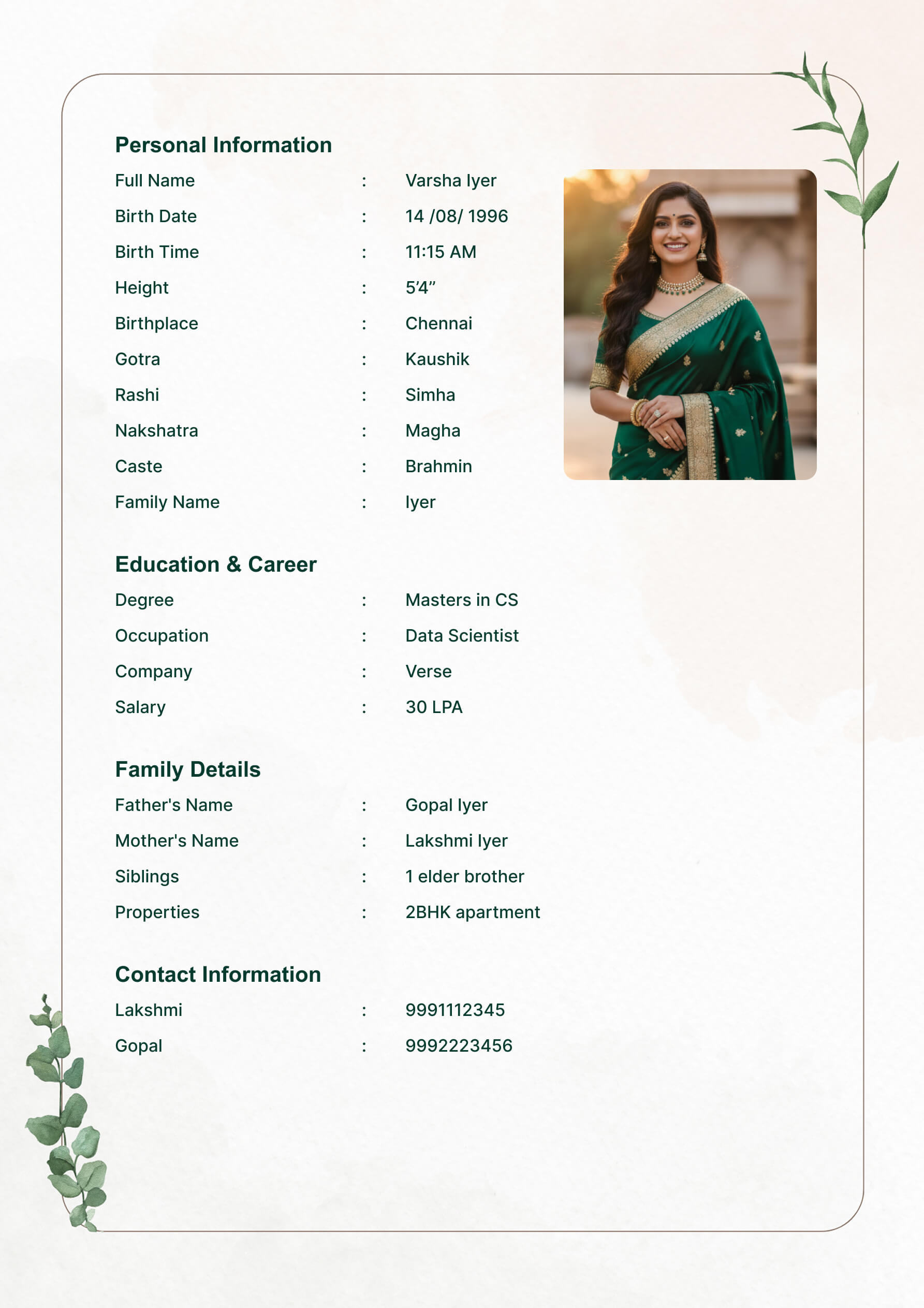 Soft, organic design with earthy tones
Best Practices Summary
Design Principles
-
Simplicity
- Clean, uncluttered layout
- Consistent formatting
- Easy-to-read fonts
- Professional appearance
-
Consistency
- Same fonts throughout
- Consistent spacing
- Uniform color scheme
- Standardized section headers
-
Readability
- Adequate white space
- Good contrast
- Clear section divisions
- Logical information flow
Content Guidelines
-
Accuracy
- Verify all information
- Update regularly
- Check contact details
- Proofread thoroughly
-
Relevance
- Include essential details
- Focus on important information
- Avoid unnecessary details
- Keep content current
-
Professionalism
- Use formal language
- Avoid slang or abbreviations
- Maintain respectful tone
- Present information clearly
Conclusion
Creating a professional marriage biodata in Microsoft Word is entirely achievable with the right approach and tools. By following this comprehensive guide, using our free templates, and applying professional formatting techniques, you can create a biodata that makes a strong impression in the Indian matrimony market.
Key Takeaways
- Choose the right template for your style and preferences
- Follow professional formatting guidelines for best results
- Use consistent styling throughout your document
- Proofread thoroughly before finalizing
- Update regularly to keep information current
Next Steps
- Download our free templates to get started
- Follow the step-by-step tutorial for best results
- Customize to your preferences while maintaining professionalism
- Test print to ensure quality
- Share confidently with potential matches
Ready to Create Your Professional Biodata?
Start with our free Word templates and follow this comprehensive guide to create a biodata that truly represents you. Remember, while the formatting is important, the content and authenticity of your biodata matter most.
For even easier biodata creation, try our online biodata maker tool which offers professional templates and instant PDF generation, perfect for those who want professional results without the complexity of Word formatting.
If you need a unified resource for Word vs PDF + free download decisions, use:
Related Resources
This comprehensive guide helps you create professional marriage biodata in Microsoft Word using our free templates and professional formatting techniques. Perfect for Indian matrimony profiles with step-by-step instructions and troubleshooting tips.